At times, there are scenarios where you might need to delete the page from the live copy hierarchy which you had rolled-out from blueprint before. For example, let us say that there was an offers page created in master blueprint and rolled out to US and Canada sites. Later when the offers page is no longer needed in Canada sites and authors do NOT even want to see the page in Canada site in author as well which means that page should be deleted from the Canada Live copy hierarchy.
In case, you directly delete the page from Sites console, AEM will mark it internally and store its path in a backend property due to which authors will never be able to rollout that page again to Canada, if its needed again.
So, you should NOT delete the page directly under the Live copy hierarchy (Canada site in our example). Rather first Un-rollout the page so it no longer maintains the live copy relationship and then delete it so AEM treats it like a normal page deletion instead of treating it as live copy page deletion.
The problem we have at hand is that there is a Rollout option in each page but there is NO Un-rollout option on the page. So, how can you un-rollout a page in AEM?
There is an indirect way to Un-rollout a page in AEM using a – “Detach” button provided on each individual live-copy page. So, in example above, to un-rollout the offers page from Canada site, first navigate to that page in Canada site which is a live copy and open its properties. In the properties dialog, navigate to “Live Copy” tab which will look as below screen –
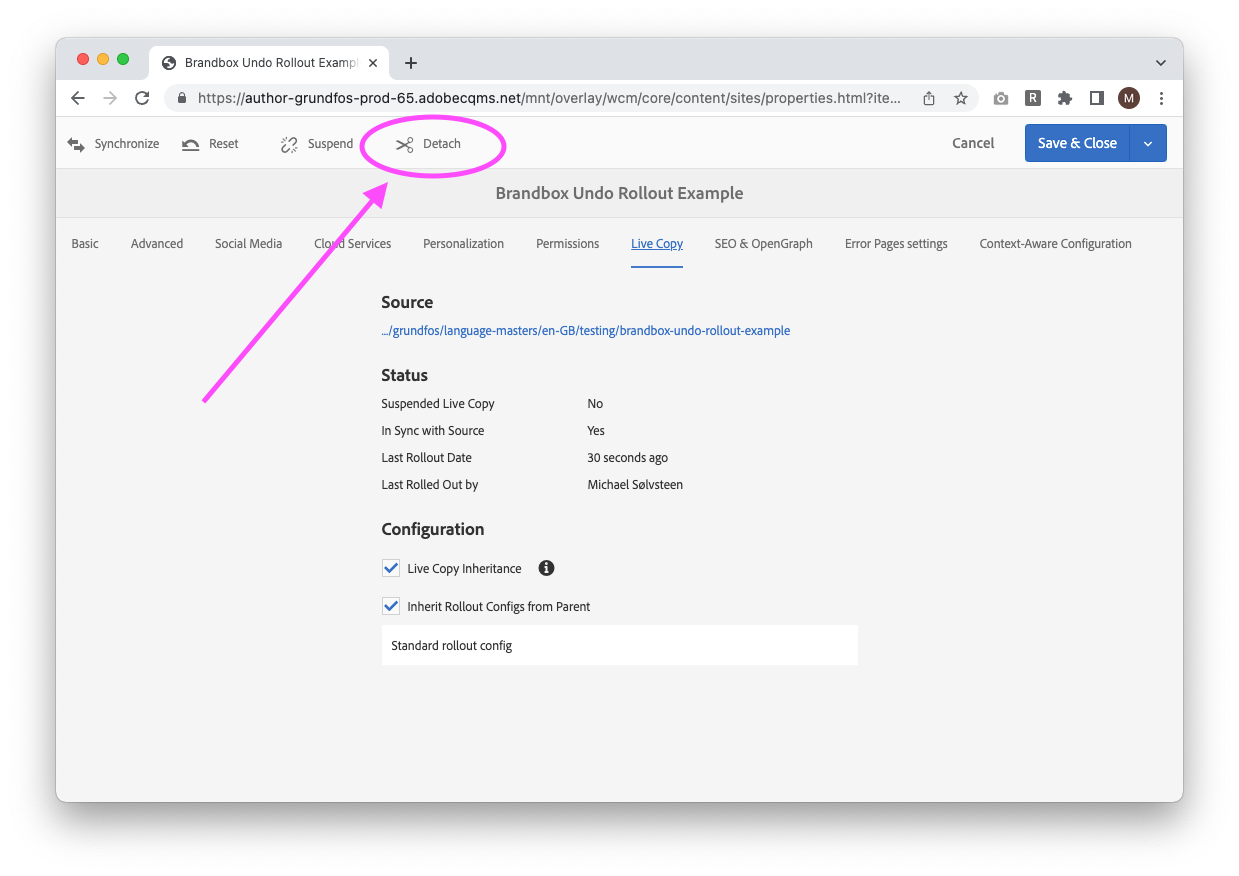
Click on the “Detach” button highlighted in above screenshot which will show another pop-up as below –
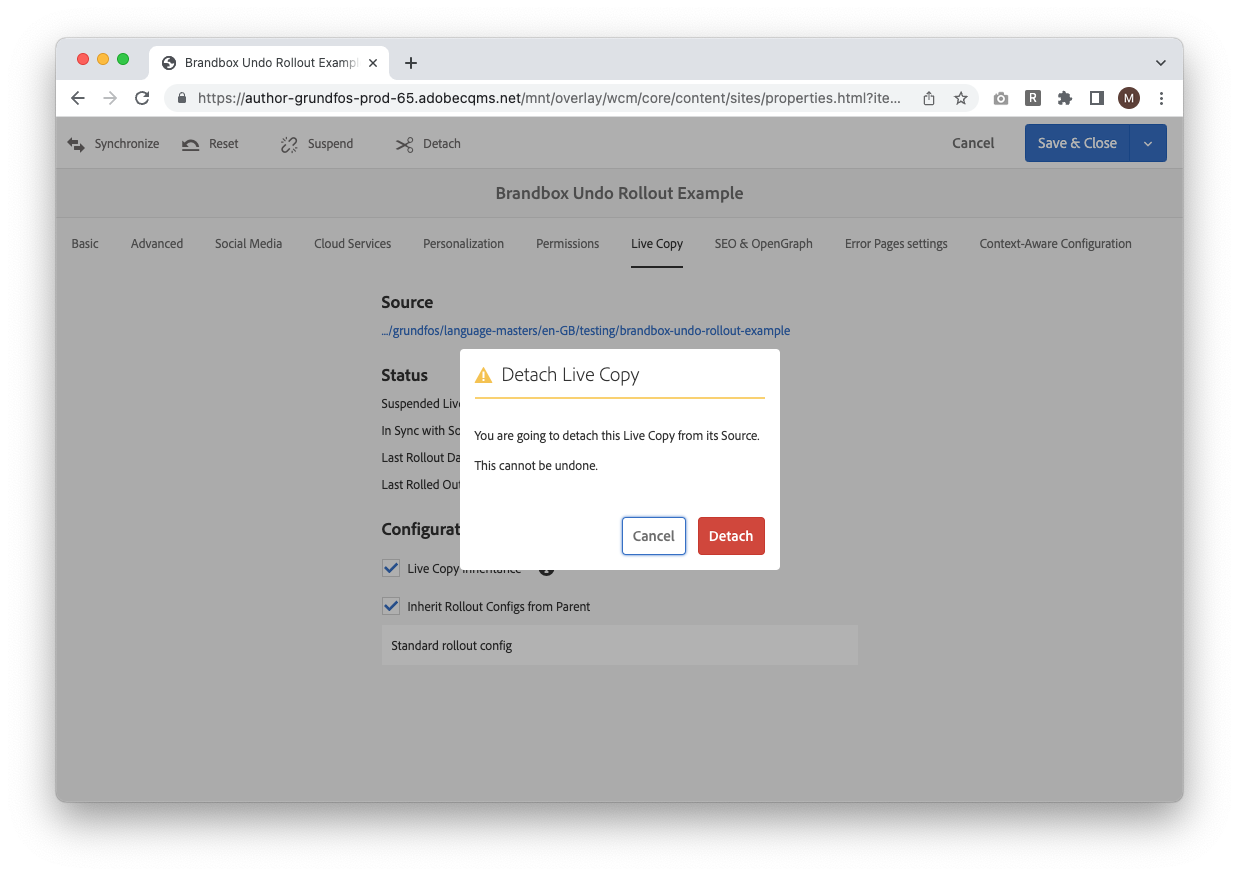
You can safely click on “Detach” that will detach this live copy page from its master blueprint page and convert it to a normal page.
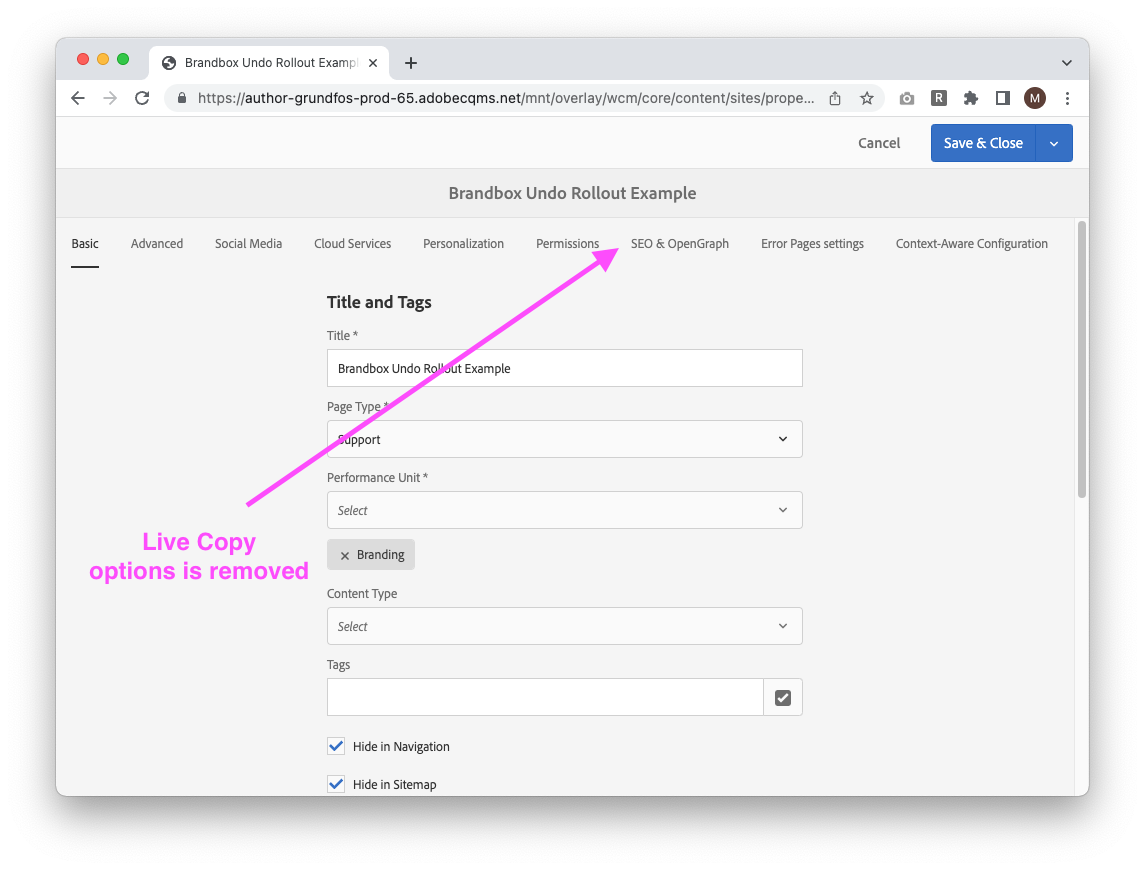
Once done, you will notice that page properties dialog will reload, and the Live Copy tab will no longer be visible. You can save the page properties dialog to save the page.
Now, you can delete the page from the Canada site hierarchy manually using the usual delete button from the Sites console and as the page was detached before deletion, AEM will NOT save it in the cq:excludedPaths property and hence later on this page can be easily re-rolled to Canada site again, if it is ever needed again.
So, summarizing, the process of Un-Rollout –
UN-ROLLOUT = DETACH + DELETE
As of now, AEM does NOT have any direct button to Un-Rollout like it has Rollout button, so you must use the above process of unrolling out the page. But never delete the page from Live Copy hierarchy without detaching it to avoid AEM marking it permanently in the exclude list of rollouts.
Credits: Text is borrowed from: https://gauravsachdeva.com/2021/07/12/how-to-un-rollout-a-page-in-aem/